
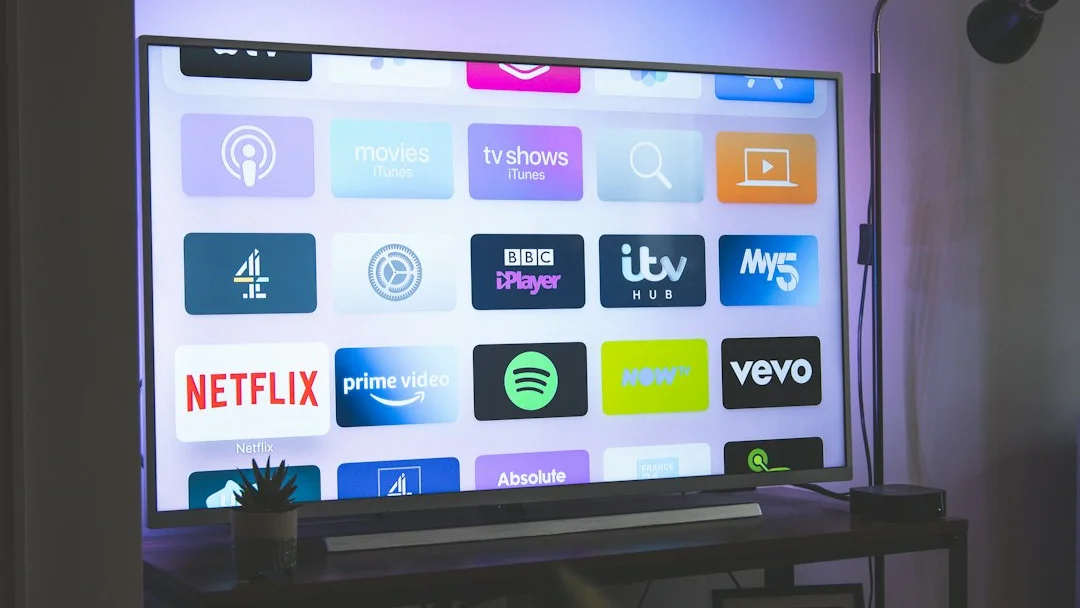
Updating your IPTV apps is important. It gives you new features and fixes problems. But updates can sometimes cause errors. This guide will show you how to update IPTV apps safely. You will learn to avoid common mistakes.
📺 Quick Tip: Always back up your playlist or favorites before you update any app. This keeps your channels safe.
Why You Need to Update Your IPTV Apps
IPTV apps get updates from their developers. These updates make the app work better. They can add new features. They also fix security problems and bugs. If you do not update, your app might stop working. It might also become unsafe. But doing the update the wrong way can cause errors. This guide helps you do it the right way.
How to Prepare for a Safe IPTV App Update
Preparation is the key to success. Follow these steps before you click “update”.
Step 1: Check Your Current App Version
First, know what version you have now. Open your IPTV app. Go to Settings or About. Write down the version number. This helps if you need to go back.
Step 2: Back Up Your Data
Your playlist and favorites are important. Many apps let you export them.
- Look for an “Export” or “Backup” option in settings.
- Save the file to your device or cloud storage.
- Write down your server URL, username, and password in a safe place.
Step 3: Use a Stable Internet Connection
Do not update using public Wi-Fi. Use your home network. A bad connection can corrupt the update file. This causes installation errors.
The Safe Update Process for Different Devices
The way you update depends on your device. Here are the safe methods.
Updating on Android TV / Firestick
Most IPTV apps are on the Google Play Store or Amazon Appstore.
- Go to your device’s app store (Play Store or Amazon Store).
- Search for your IPTV app by name (e.g., “IPTV Smarters Pro”).
- If an update is available, you will see an “Update” button.
- Click it and wait for the installation to finish.
- Do not open the app until the update is 100% complete.
If the app is not from an official store, you may need to download the new APK file from the official website. Always uninstall the old version before installing the new one.
Updating on iOS (iPhone/iPad)
iOS updates are very simple and safe.
- Open the App Store on your device.
- Tap your profile icon in the top right corner.
- Scroll down to see pending updates.
- Find your IPTV app and tap “Update” next to it.
- You may need to enter your Apple ID password.
Note: Some IPTV apps may be removed from the App Store. In that case, you cannot update them through normal means.
Common Update Errors and How to Fix Them
Sometimes, things go wrong. Here are common errors and their fixes.
Error 1: “App Not Installed” (Android)
This happens often when installing an APK file.
- Fix: Go to Settings > Security. Enable “Unknown Sources” or “Install Unknown Apps” for your file manager or browser.
- Also: Delete the old APK file. Download the new one again from the official source. Make sure you have enough storage space.
Error 2: Playback Stops Working After Update
The app updated, but now channels won’t play.
- Fix: Restart your device (TV Box, Firestick, etc.). This clears the cache.
- Then: Open the app. Go to Settings. Clear the app’s cache and data. Then log in again with your playlist details.
Error 3: The App Crashes on Startup
The app opens and then immediately closes.
- Fix: The update may be corrupt. Uninstall the app completely. Reboot your device. Then install the app fresh from the official source.
- Use your backup file to restore your playlist.
Best Practices for a Smooth IPTV Experience
Follow these tips to keep your IPTV apps running well.
- Update Regularly: Don’t ignore update notifications for too long.
- Use Official Sources: Only download apps from the official website, Play Store, or App Store.
- Restart Your Device: A simple restart can fix many small problems after an update.
- Check Developer Notes: Read what’s new in the update. It might tell you about important changes.
Need a Reliable IPTV Player?
For a smooth and feature-rich experience, consider using an official and widely-trusted application. It receives regular, stable updates.
Conclusion: Update with Confidence
Updating your IPTV apps does not have to be scary. If you prepare, use the right sources, and follow the steps, you can avoid errors. Always remember to back up your data first. If you do get an error, use the troubleshooting tips in this guide. Keeping your app updated is the best way to enjoy a safe and high-quality IPTV service.
Happy watching! 🎬
