
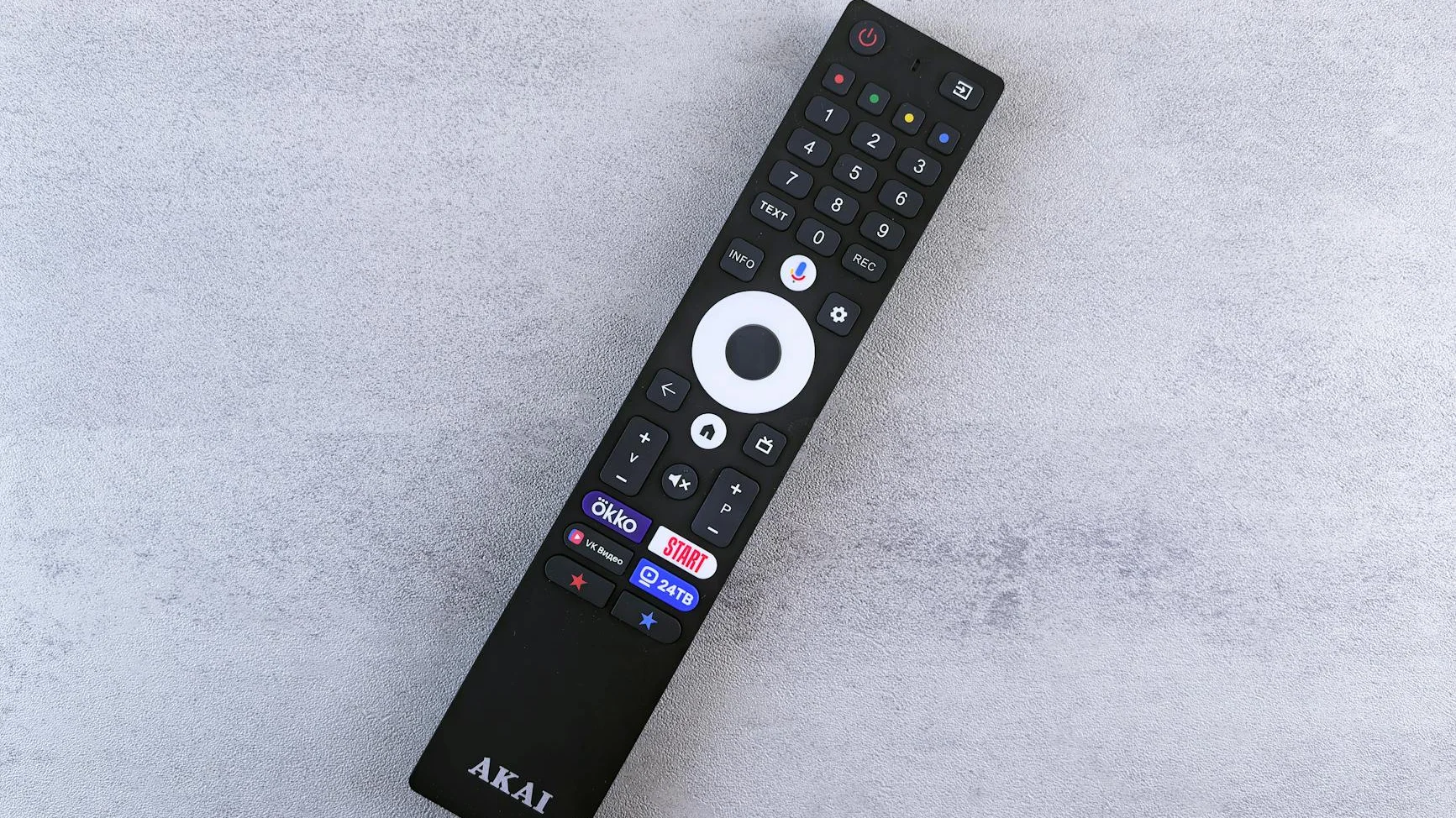
Remote Control Not Working with IPTV App? Solved
Is your remote control not working with your IPTV app? You press the buttons, but nothing happens. The TV show is stuck, and you can’t change the channel. It’s a common and very frustrating problem. This guide will walk you through simple, In-depth guide fixes to get your remote working again.
Guide at a Glance
Time Required: 10-30 minutes
Skill Hub: 2 out of 5 (Easy)
Essential Component: Your existing remote and device.
This guide is written in simple English. No technical jargon. We will fix common issues like unresponsive buttons, pairing problems, and app-specific glitches.
Why Won’t My Remote Control My IPTV App?
Before we start fixing, let’s understand the “why.” Your remote might not work for a few key reasons:
- Bluetooth/Pairing Issue: Many modern remotes (like Fire TV or Android TV) connect via Bluetooth. This connection can sometimes break.
- App Focus: The remote’s signals might be going to the wrong part of your device’s menu, not the IPTV app.
- Dead Batteries: It sounds obvious, but it’s the most common fix!
- Software Glitch: A small bug in the device software or the IPTV app itself can freeze remote functions.
- Infrared (IR) Blocked: For older remotes, something might be blocking the signal between the remote and the device.
Prerequisites: What You Need Before Starting
Let’s get ready. You will need:
- Your TV device (Fire Stick, Android Box, Smart TV, etc.).
- The remote that is not working.
- Fresh batteries (AA or AAA, depending on your remote).
- A smartphone with your device’s companion app installed (optional but very helpful).
Step 1: The Universal Quick Fixes
Always try these simple steps first. They solve over 50% of remote control problems.
1. Restart Your Device and Remote
This clears temporary software glitches.
- Unplug your streaming device (Fire Stick, box, etc.) from the power source.
- Wait for 60 seconds.
- Plug the device back in and wait for it to fully start.
- While the device restarts, take the batteries out of your remote for 30 seconds, then put them back in.
2. Check and Replace Batteries
Even if the batteries aren’t completely dead, they might be weak. Use brand-new batteries to be sure. Check the battery contacts inside the remote for any corrosion and clean them gently if needed.
3. Remove Obstructions (For IR Remotes)
If your remote uses infrared (you see a red light when you press a button), make sure nothing is blocking the path between the remote and the device. Also, ensure you are pointing the remote directly at the device’s sensor.
Step 2: Re-pair Your Bluetooth Remote
If the quick fixes didn’t work, your Bluetooth remote likely needs re-pairing. Here’s how for popular devices:
For Amazon Fire TV Stick Remote:
- Hold the Left button and the Menu button (three lines) for 10 seconds.
- Release the buttons. The remote should disconnect.
- Wait for about 30-60 seconds. The remote should automatically reconnect. You’ll see a pairing message on your TV screen.
- If it doesn’t reconnect, go to Settings > Controllers & Bluetooth Devices > Amazon Fire TV Remotes > Add New Remote.
For Android TV/Google TV Remote:
- Go to Settings > Remote & Accessories > Pair remote or accessory.
- Follow the on-screen instructions. You may need to hold the Back and Home buttons on the remote for 3 seconds to put it in pairing mode.
Step 3: Fix App-Specific Remote Issues
Sometimes, the remote works everywhere except inside your specific IPTV app (like Tivimate, Smarters Pro, or IPTV Extreme). Here’s how to fix that.
1. Force Close and Reopen the IPTV App
This resets the app’s connection to the remote.
- Go to your device’s main Settings.
- Find Applications or Apps.
- Select your IPTV app (e.g., “Tivimate”).
- Choose Force Stop, then confirm.
- Go back to your home screen and open the app again.
2. Clear the App Cache (Do Not Clear Data)
A corrupted cache can cause remote control problems.
- Go back to Settings > Applications > [Your IPTV App].
- Select Storage & Cache.
- Click Clear Cache. This does not delete your playlists or settings.
- Restart the app.
3. Check for App and System Updates
An outdated app or device software can have bugs that break remote functionality.
- Update the IPTV App: Go to your device’s app store (Google Play Store or Amazon Appstore) and check for updates for your IPTV app.
- Update Device Software: Go to Settings > About > Check for Updates or System Updates.
Troubleshooting: When Nothing Else Works
If you’ve tried everything and your remote still isn’t working with your IPTV app, try these advanced steps.
Factory Reset Your Remote
Warning: This will erase all custom pairings. Only do this if you know how to re-pair it.
For many remotes, you can find the specific reset button combination by searching for “[Your Device Model] remote factory reset” on the web. For example, for some Roku remotes, you press a small reset button inside the battery compartment.
Consider Network Buffering or ISP Throttling
Sometimes, if your IPTV stream is buffering heavily due to a slow connection or ISP Throttling, the app can become unresponsive to remote inputs. Check your internet speed. If it’s slow, try restarting your router.
Device Compatibility Table
Some older devices struggle with modern IPTV apps. Here is a quick comparison:
| Device Type | Remote Control Reliability | Notes |
|---|---|---|
| Amazon Fire Stick 4K Max (2023) | Excellent | Bluetooth remote, rarely has issues. |
| Generic Android TV Box (2019) | Fair | IR remotes can be laggy; consider a Bluetooth air mouse. |
| NVIDIA Shield TV Pro | Excellent | Top-tier performance, remote works flawlessly with most apps. |
Frequently Asked Questions (FAQ)
Why does my remote work on the home screen but not in the IPTV app?
This is almost always an issue with the specific IPTV app. Force close the app, clear its cache, and check for an update. If the problem continues, try reinstalling the app.
Can I use a universal remote for my IPTV app?
Yes, but setup can be tricky. You need to program the universal remote for your specific streaming device (Fire TV, Android Box, etc.). Once programmed, it should work in the IPTV app. Refer to your universal remote’s manual.
My remote’s navigation works, but the “OK/Select” button doesn’t. How do I fix it?
This is a classic sign of an app or menu focus bug. Try pressing the “Back” button first, then try “OK” again. If that fails, force close the app as described in Step 3.
Where can I get a reliable IPTV service and app?
For a seamless viewing experience with excellent app support, consider a premium service. A great option is IPTV Smarters Pro, which offers a user-friendly interface and stable performance. You can learn more and get started at their official website.
Conclusion: Enjoy Your Shows Again
A remote control not working with your IPTV app is a common headache, but it’s usually easy to fix. Start with the basics: restart and check batteries. Then, re-pair your remote. Finally, focus on the app itself by clearing its cache. For more general setup help, check out our guide on [INTERNAL LINK: How to Install an IPTV App on Any Device]. If you’re experiencing other issues like constant buffering, you might want to read about [INTERNAL LINK: How to Stop IPTV Buffering for Good]. Remember, using a reliable service with a well-supported app like Smarters Pro can prevent many of these issues from happening in the first place. Now, grab your working remote and enjoy your shows!
