
Does Your Internet Company Know You’re Using IPTV? A Simple Privacy Guide
Are you worried your Internet Service Provider (ISP) is watching what you watch? Do you fear getting a warning letter or slower internet? You are not alone. Many IPTV users have these concerns. This guide explains what your ISP can see and gives you simple, working solutions to protect your privacy in 2024.
What You’ll Need
Getting set up for private streaming is straightforward. You can expect to spend about 10 to 30 minutes on the process. The most important item is a trustworthy VPN (Virtual Private Network) application.
What Your ISP Sees When You Stream
Your ISP manages the flow of all your internet data. When you use standard services, they can see the destinations you connect to and the volume of data transferred.
Specifically with IPTV traffic, your ISP typically observes:
- Connection Details: They see you are connecting to a server that streams video.
- Data Amount: They see you are using a LOT of data, which is typical for video.
- Server Address: They see the IP address of your IPTV provider’s server.
If your stream uses encryption, they generally cannot see the specific channels or content you are watching. The data is visible, but the details inside are concealed.
Understanding Throttling
Even without identifying the activity as IPTV, ISPs frequently detect high data consumption and may intentionally slow down (throttle) your connection during busy periods. This is a primary cause of Network Buffering. Implementing a VPN is the most reliable solution to prevent this.
The Essential Privacy Tool: A VPN
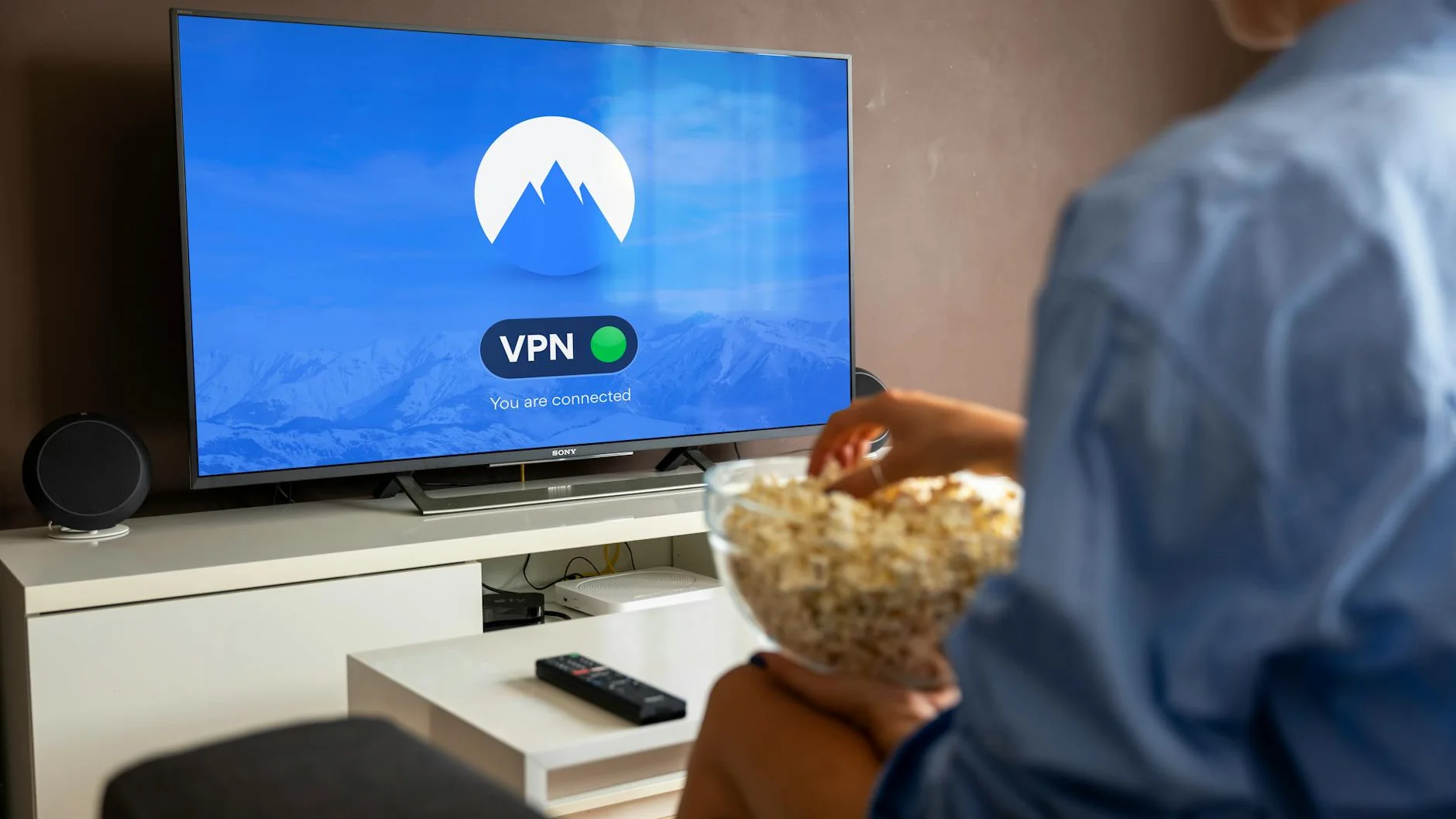
A VPN serves as your primary privacy layer. It establishes an encrypted tunnel from your device to the wider internet. From your ISP’s perspective, you are only connecting to the VPN server’s IP address, with all your subsequent IPTV traffic hidden within that secure connection.
Configuring a VPN for IPTV This Year
This process works on most streaming devices, including Firestick, Android TV boxes, and smart TVs.
Selecting and Subscribing to a VPN Service
Begin by choosing a VPN provider with a strong reputation for speed and a verified no-logs policy. Consult recent 2024 reviews for current recommendations. Visit the provider’s official website to create an account and subscribe.
Troubleshooting: If the website is blocked, try searching for the VPN name + “official site” on a search engine.
Installing the VPN Application
On devices like the Amazon Firestick, installation often requires using the Downloader app or sideloading the APK file.
- Launch the Downloader app.
- Enter the official URL for your VPN’s Android APK file. You must search the web to find this exact, current URL from the VPN’s official support page.
- Download and install the app.
Troubleshooting: If you get “Install Blocked,” go to your device’s Settings > My Fire TV > Developer Options and turn ON “Apps from Unknown Sources.”
Establishing a Connection and Verifying
Open the newly installed VPN app, log in with your credentials, and connect to a server. For best speed, select one geographically close to you. Once the VPN connection is active, launch your IPTV application (such as Tivimate or Smarters Pro) to test if your channels load properly.
Troubleshooting: If your IPTV stops working with the VPN on, try a different server location. Some IPTV providers block certain VPN IP addresses.
Critical Verification: DNS Leak Test
After connecting your VPN, it’s crucial to verify it’s working correctly. Open a web browser and visit a site like dnsleaktest.com. Run the standard test. If the results display your actual ISP and location, your VPN is leaking data. Enable “DNS leak protection” in your VPN’s settings to resolve this.
Resolving Common IPTV Issues Privately
Addressing Black Screen or “No Stream” Errors
A black screen often indicates a connection block. Work through these actions:
- Activate Your VPN: This should always be your first response to connection errors.
- Verify Your M3U URL or Xtream Codes API: Log into your provider’s customer portal to confirm your connection details are current and correct, as URLs can change.
- Adjust DNS Settings: Your ISP’s default DNS may be blocking the stream. In your device’s network settings, try switching to a public DNS like Google (8.8.8.8) or Cloudflare (1.1.1.1).
Solving Audio Issues and Buffering
Persistent buffering or absent audio points to a few key areas.
- Counter ISP Throttling: Enabling a VPN is the most effective measure against intentional slowdowns.
- Adjust Hardware Decoding: In players like VLC or Tivimate, navigate to Settings > Playback > Hardware Decoding and experiment by toggling this setting.
- Select Audio Track: During playback, access the audio or subtitle menu and choose an alternative audio track (e.g., “AAC” or “AC3”).
Comparing IPTV Setup Approaches
Different setup methods balance ease of use with privacy considerations. Here’s a breakdown:
| Method | Ease of Setup | Privacy Risk | Best For |
|---|---|---|---|
| Standalone App (e.g., Smarters Pro) | Easy | Medium (Without VPN) | Beginners, All Devices |
| M3U Playlist in VLC | Medium | Medium (Without VPN) | Tech-savvy users, PCs/Laptops |
| Any Method + VPN | Adds a Step | Very Low | Everyone concerned with privacy |
Final Thoughts on Private Streaming
Your ISP can detect that you are streaming significant amounts of video data, which may trigger throttling. However, employing a modern, reputable VPN effectively conceals your IPTV activity, prevents speed restrictions, and resolves numerous connectivity problems. This setup remains the most impactful single step for maintaining privacy while streaming in 2024.
For a smooth experience, pair a reliable IPTV service with a quality VPN. To manage your streams effectively, consider using a professional player application that supports all major service formats.
Related Reading: Learn more about optimizing your setup in our guide on [INTERNAL LINK: How to Install and Configure Tivimate for Beginners] or solving specific issues in [INTERNAL LINK: Ultimate Guide to Fixing IPTV Buffering].
