
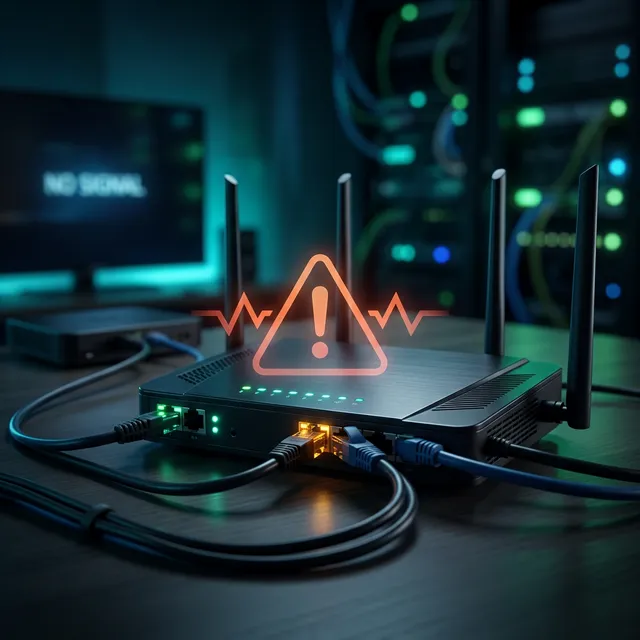
Connection errors are among the most common issues that IPTV users encounter. Whether you are seeing “No Signal,” “Connection Timeout,” or “Authentication Failed” messages, these errors can prevent you from accessing your paid IPTV service entirely. This comprehensive guide explains what each error means and walks you through exactly how to resolve them.
🚫 Understanding Connection Error Types
IPTV connection errors generally fall into three categories: network errors, authentication errors, and server errors. Each category has distinct causes and solutions. Identifying which category your error falls into saves you significant time in troubleshooting because you can immediately focus on the relevant solutions instead of trying everything blindly.
Network Errors: “Connection Timeout” and “No Signal”
A “Connection Timeout” error means your device attempted to connect to the IPTV server but did not receive a response within the expected timeframe. This typically indicates a network issue between your device and the server. The “No Signal” error is similar but specifically means no data stream could be established at all. Start by verifying that your internet connection is working by opening a web browser or another streaming application. If your internet is working, the issue is likely between your network and the IPTV server specifically.
Common causes include DNS resolution failures, firewall blocking, router configuration issues, or your ISP blocking certain types of traffic. Try changing your DNS settings to Google DNS (8.8.8.8 and 8.8.4.4) or Cloudflare DNS (1.1.1.1 and 1.0.0.1). If that does not work, test with a VPN to bypass any potential ISP-level blocking. You should also check if your router has any content filtering or parental control features enabled that might be blocking the IPTV server addresses.
Authentication Errors: “Login Failed” and “Invalid Credentials”
Authentication errors occur when the IPTV server rejects your login credentials. The most common causes are surprisingly simple: incorrect username or password, extra spaces accidentally added when copying and pasting credentials, expired subscription, or exceeding the maximum number of simultaneous connections allowed on your plan. Double-check your credentials by logging into your IPTV provider web portal first. If you can log in on the website but not on your device, the issue is likely with how the credentials were entered in the IPTV application.
Another frequent cause of authentication failures is having too many active connections. Most IPTV subscriptions limit the number of devices that can stream simultaneously. If you have reached your connection limit, you will need to stop streaming on another device before your new device can connect. Some providers show the number of active connections in their user portal, making it easy to identify and manage this issue. If you regularly need to stream on multiple devices, consider upgrading to a plan that supports more simultaneous connections.
Server Errors: “Service Unavailable” and Error Codes
Server errors indicate that the problem is on the IPTV provider side rather than with your device or connection. These errors often appear during scheduled maintenance windows or unexpected server outages. Common server error codes include 403 (Forbidden — your account may have been suspended), 404 (Not Found — the channel or stream URL has changed), and 503 (Service Unavailable — the server is temporarily overloaded or down for maintenance). When you encounter server errors, the first step is to check your IPTV provider social media channels, support page, or community forums for any announcements about known issues or maintenance windows.
🔧 Universal Troubleshooting Checklist
- Verify your internet connection — Visit speedtest.net to confirm you have adequate speed and no packet loss.
- Restart your device and router — A full power cycle resolves a surprising number of connection issues.
- Double-check login credentials — Log into your provider portal to verify your username and password are correct.
- Change DNS settings — Switch to Google (8.8.8.8) or Cloudflare (1.1.1.1) DNS for more reliable name resolution.
- Try a VPN connection — This bypasses ISP-level blocking and can resolve otherwise unexplainable connection failures.
- Test on a different device — This helps determine whether the issue is device-specific or account-wide.
- Update your IPTV app — Outdated apps may use deprecated connection methods that servers no longer support.
- Contact your provider — If all else fails, your provider support team can check your account status and server health.
🛡️ Preventing Future Connection Issues
The best way to avoid connection problems is to choose a reliable IPTV provider with robust infrastructure. SmartersPro operates a geographically distributed server network with automatic failover, meaning if one server experiences issues, your stream is automatically routed to a healthy server without interruption. We also provide 24/7 technical support to quickly diagnose and resolve any connection issues you may encounter. Our instant setup process ensures your credentials are correctly configured from the start, eliminating the most common cause of authentication errors.
Additionally, consider setting up your IPTV device with a static IP address on your local network, reserving a specific IP in your router DHCP settings. This prevents IP address conflicts and provides a more stable connection. Keep your router firmware updated as well, since manufacturers regularly release updates that improve network stability and compatibility with streaming protocols.
✅ Experience reliable IPTV with zero connection errors. Start streaming with SmartersPro.
