
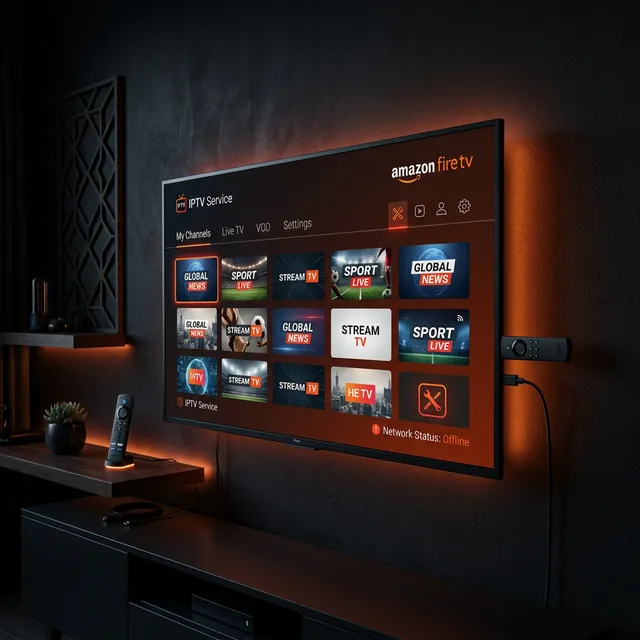
The Amazon Firestick is one of the most popular devices for IPTV streaming worldwide. However, users frequently encounter issues ranging from apps not loading to playback errors and complete black screens. This article covers the ten most common Firestick IPTV problems and provides proven solutions for each one.
📱 Top 10 Firestick IPTV Problems & Solutions
1. IPTV App Will Not Install
If your IPTV application fails to install on your Firestick, the most likely cause is that you have not enabled installation from unknown sources. Navigate to Settings → My Fire TV → Developer Options and toggle on “Apps from Unknown Sources.” If developer options are not visible, go to Settings → My Fire TV → About → click on the device name seven times rapidly to unlock developer mode. Additionally, ensure your Firestick has sufficient storage space available by going to Settings → My Fire TV → About → Storage and clearing unnecessary apps or data if storage is running low.
2. Black Screen After Opening
A black screen usually indicates that your IPTV playlist or login credentials are incorrect, or the subscription has expired. Verify your login details carefully, paying attention to any spaces or special characters. If your credentials are correct, try force-stopping the app and clearing its cache before reopening it. In some cases, the issue is related to an expired EPG (Electronic Program Guide) data file, which can be resolved by refreshing the playlist within your IPTV application settings.
3. Audio Works But No Video
When you can hear audio but see no video, the problem is typically related to codec compatibility. The Firestick hardware decoder may not support certain video codecs used by specific channels. The solution is to switch from hardware decoding to software decoding in your IPTV player settings. In apps like IPTV Smarters or TiviMate, look for Player Settings and change the decoder type. Software decoding uses more CPU resources but supports a wider range of video codecs and formats.
4. Channels Loading Slowly
Slow channel switching can be caused by a large playlist that takes time to process, or by an overloaded network connection. Try reducing your playlist size if possible, or switch to a playlist format that loads faster such as M3U8 instead of XML. Additionally, closing other streaming applications you are not using frees up system resources and speeds up channel loading times considerably.
5. App Crashes Repeatedly
Frequent app crashes on Firestick are usually caused by insufficient memory, corrupt cache data, or an outdated app version. Start by clearing the IPTV app cache and data through the Firestick settings. If the problem persists, uninstall the application completely and reinstall it from scratch. Make sure you are running the latest version of Fire OS by going to Settings → My Fire TV → About → Check for Updates. Keeping both the operating system and the IPTV application updated significantly reduces crash frequency.
6. EPG (TV Guide) Not Loading
If your electronic program guide shows no data or fails to load, the EPG URL provided by your IPTV service may be incorrect or the EPG server may be temporarily unavailable. Verify the EPG URL with your provider and try refreshing the guide manually. Some IPTV applications allow you to set an EPG update interval — setting it to refresh every 12-24 hours ensures you always have current programming information without overloading the EPG server.
7. VPN Connection Drops
If you use a VPN on your Firestick and experience frequent disconnections that interrupt your IPTV stream, try switching to a different VPN server location or protocol. OpenVPN and WireGuard protocols offer different stability characteristics. Some VPN apps also have a kill switch feature that stops all internet traffic when the VPN drops — while this protects your privacy, it also interrupts your stream. Evaluate whether the kill switch is necessary for your use case.
8. Remote Control Not Responding in App
Some IPTV apps have specific navigation requirements that differ from standard Firestick apps. If your remote seems unresponsive within the IPTV app, try using the Firestick companion app on your smartphone as an alternative remote, or pair a Bluetooth mouse for easier navigation through channel lists and settings menus.
9. Firestick Overheating During Streaming
The compact design of the Firestick makes it prone to overheating, especially when plugged directly into the back of a TV where hot air rises. Use the HDMI extender cable that comes in the box to move the Firestick away from the TV and allow better air circulation. If you stream for long periods, consider an aftermarket cooling solution such as a small clip-on heatsink designed for the Firestick.
10. Stream Quality is Low Despite Fast Internet
If you have a fast internet connection but your streams still look low quality, the culprit may be your IPTV player settings defaulting to a lower resolution to save bandwidth. Check the video quality settings in your IPTV application and ensure it is set to the highest available resolution. Also verify that your TV display settings on the Firestick match your TV capability — go to Settings → Display & Sounds → Display → Video Resolution and select the appropriate option for your television.
🔥 Need a reliable IPTV service for your Firestick? Check out SmartersPro plans.
