
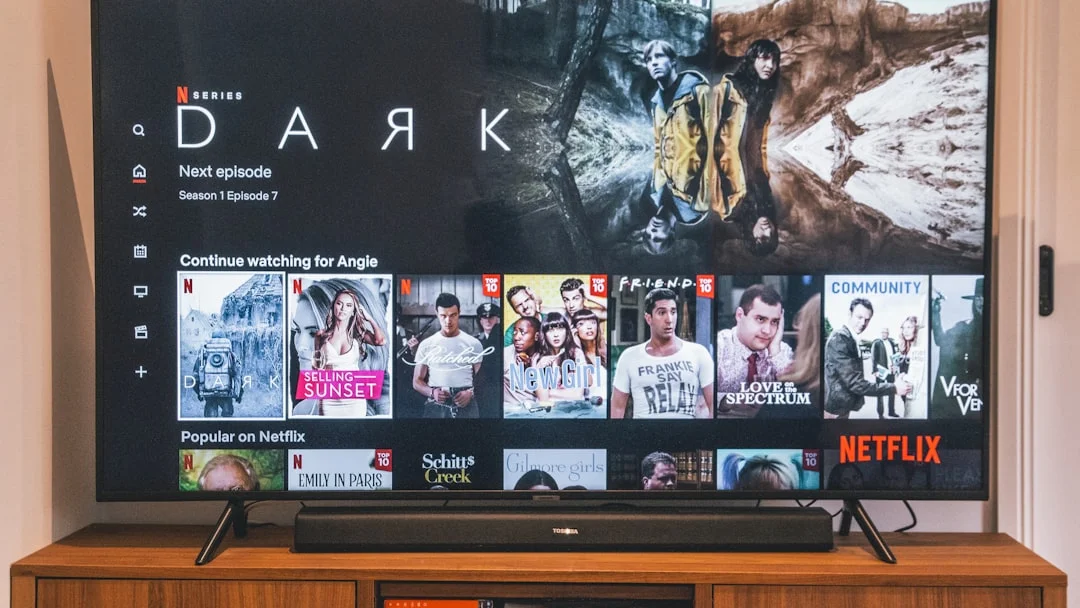
Firestick IPTV Not Working? Let’s Fix It Together!
Is your IPTV service not working on your Amazon Firestick? Don’t worry! This is a common problem. This guide will help you fix it step-by-step. We will use simple steps. No technical talk. Let’s get your shows and movies back on!
📺 Quick Tip: Most Firestick IPTV problems are easy to fix. Often, it’s just an app needing an update or a quick setting change.
Why Your Firestick IPTV Might Not Be Working
First, let’s understand the common reasons. Knowing this helps you find the right fix faster.
- Internet Connection: A weak or slow Wi-Fi signal.
- App Issues: The IPTV app crashed or needs an update.
- Firestick Storage: The device memory is full.
- Wrong Settings: “Apps from Unknown Sources” is turned off.
- Service Problem: Your IPTV provider is having a temporary issue.
Step-by-Step Fixes for Firestick IPTV
Follow these steps in order. Try the first one, then test your IPTV. If it still doesn’t work, move to the next step.
Step 1: Check Your Internet Connection
A good connection is key for IPTV. Here is how to check:
- Go to your Firestick Home Screen.
- Select Settings (the gear icon at the top).
- Go to Network.
- Select your Wi-Fi network and check the signal strength.
- If it’s weak, try restarting your router. Unplug it, wait 30 seconds, and plug it back in.
Step 2: Restart Your Firestick
This fixes many small problems. It clears the device’s memory.
- Hold down the Play/Pause button and the Select button (the circle in the middle) on your remote at the same time for about 10 seconds.
- Your Firestick will restart. Wait for it to turn back on.
- Open your IPTV app again and see if it works.
Step 3: Update Your IPTV App
An old app version can cause errors. You need to update it.
- From the Home Screen, go to Settings.
- Select Applications > Manage Installed Applications.
- Find and select your IPTV app (like IPTV Smarters Pro, TiviMate, etc.).
- If an update is available, you will see an option. Select Update.
Step 4: Clear the App Cache and Data
Sometimes, old, stored data (cache) can break the app. Clearing it is safe and often helps.
- Go to Settings > Applications > Manage Installed Applications.
- Select your IPTV app.
- Choose Clear Cache. Then, choose Clear Data.
- Note: Clearing data might log you out. You will need to enter your IPTV login details again.
Step 5: Check “Unknown Sources” Setting
If you installed your IPTV app from outside the Amazon Appstore, this setting must be ON.
- Go to Settings > My Fire TV.
- Select Developer Options.
- Make sure Apps from Unknown Sources is ON.
Step 6: Free Up Space on Your Firestick
If your Firestick storage is full, apps can fail. Let’s make some space.
- Go to Settings > Applications > Manage Installed Applications.
- Look for apps you don’t use. Select them and choose Uninstall.
- Also, go to Settings > Applications > Manage Installed Applications > IPTV App > Clear Cache (again).
What If It Still Doesn’t Work?
If you tried all steps and your IPTV is still not working, the issue might be with your service.
- Check with your IPTV Provider: Visit their website or contact support. Ask if there is a known service outage.
- Try a Different IPTV App: Sometimes, one app has a bug. Try installing a different popular IPTV player to see if the problem is with the app itself.
- Factory Reset (Last Resort): This erases everything and sets your Firestick back to new. Only do this if nothing else works.
- Go to Settings > My Fire TV > Reset to Factory Defaults.
- Follow the on-screen instructions. You will need to set up your Firestick and reinstall all apps again.
Need a Reliable IPTV App?
For a smooth and user-friendly experience, a good app makes all the difference. IPTV Smarters Pro is a popular choice for Firestick users. It’s easy to use and works well.
Visit the official website for the correct download and setup guide.
Conclusion: Enjoy Your Shows Again
Most Firestick IPTV problems have a simple fix. Start with your internet and a restart. Then, update and clear your app cache. By following this guide, you should be watching your favorite channels again in no time. Remember, if the problem is with your IPTV service itself, you will need to contact your provider. Happy streaming! 🎬
