
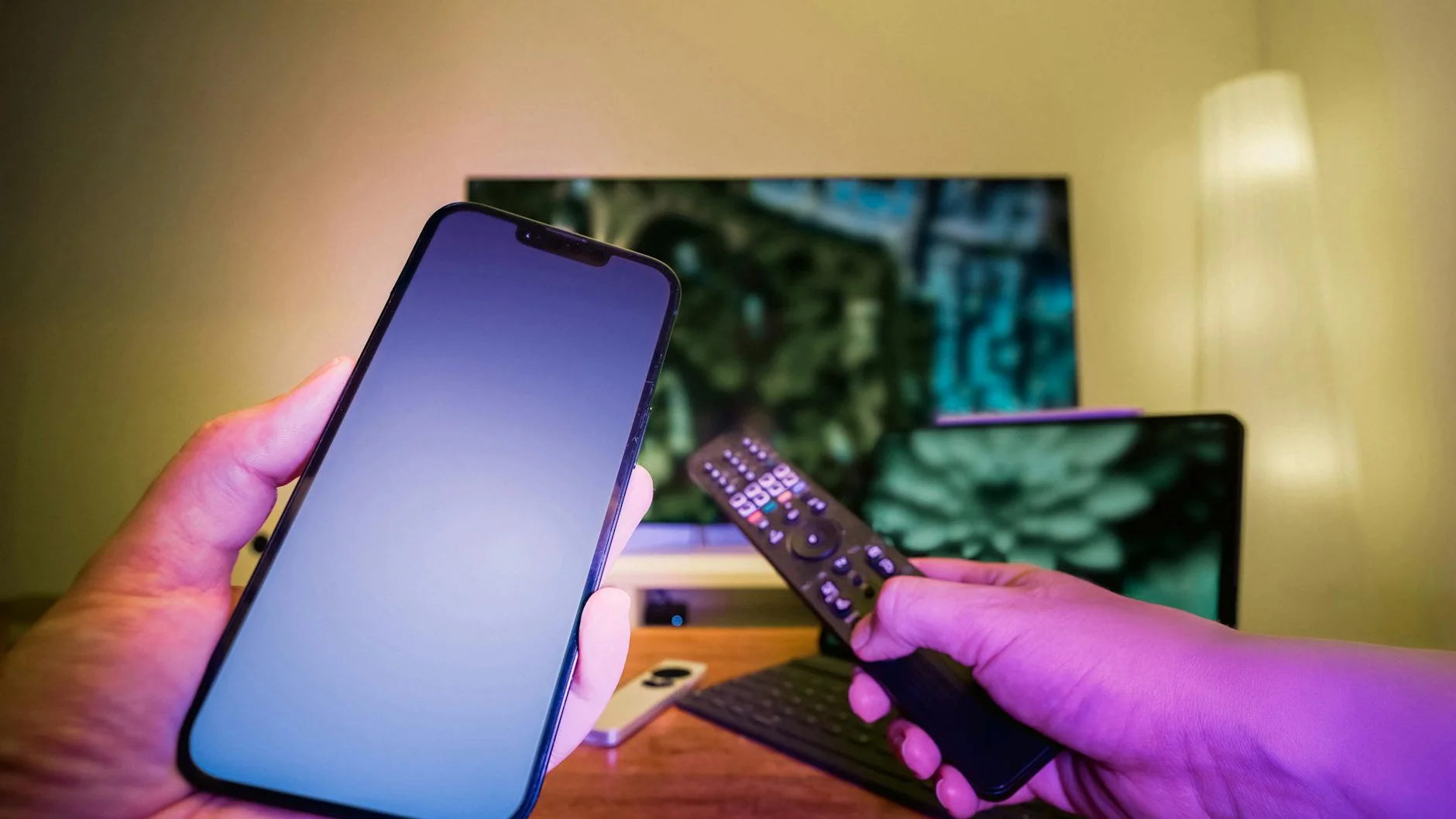
Geo-Restricted Content Solved: Accessing Global IPTV Channels
Are you tired of seeing “This content is not available in your region”? Do you want to watch live sports, news, and shows from anywhere in the world? You’re not alone. Geo-blocks are a common frustration. This guide will show you a simple, reliable method to access global IPTV channels on almost any device.
Guide at a Glance
Duration: 15-20 Minutes
Skill Hub: 2 out of 5 (Beginner-Friendly)
Essential Component: A reliable IPTV service provider and a compatible app like IPTV Smarters Pro.
Goal: Set up your device to bypass location blocks and stream international channels.
What is This App and How Does It Help?
To watch global channels, you need a media player app that can understand IPTV signals. Think of it like a special TV that can tune into thousands of international stations. A popular choice is IPTV Smarters Pro. It’s a user-friendly application that acts as a gateway between your IPTV subscription and your screen.
Your IPTV provider gives you access to channels, but the app is what organizes them, loads the electronic program guide (EPG), and plays the video. It’s the essential software that makes the whole system work smoothly on your phone, tablet, Firestick, or Android TV box.
Key Features for a Global Viewing Experience
A good IPTV app does more than just play video. Here’s what to look for:
- Multi-Screen Support: Watch on your TV, phone, and tablet.
- Electronic Program Guide (EPG): See what’s on now and next, just like cable TV.
- Parental Controls: Lock certain channels or categories.
- Favorites Manager: Build your own list of go-to channels from any country.
- Catch-Up & VOD: Watch shows you missed and access a movie library.
- External Player Support: If you have issues, you can send the stream to a player like VLC.
Installation Guide: Getting the App on Your Device
The steps vary slightly depending on your device. The most common setup is for Android TV and Amazon Fire TV Stick.
For Amazon Firestick / Android TV
- From your device’s home screen, go to Settings > My Fire TV > Developer Options.
- Turn ON “Apps from Unknown Sources”. Confirm if prompted.
- Go back to the home screen and use the search function. Search for and install the app called “Downloader”.
- Open the Downloader app. In the URL field, enter the official download link for IPTV Smarters Pro. (Note: Always get the app from its official source to ensure safety).
- Download and install the APK file. The app will appear in your “Your Apps & Channels” list.
For Other Devices (iOS, Windows, Mac)
The process is simpler for other platforms:
- iOS (iPhone/iPad): Search for “IPTV Smarters Player” in the official App Store and install it directly.
- Windows/Mac: You can often use an Android emulator like BlueStacks or download a desktop version from the official provider’s website.
Setup Instructions: Connecting to Your Global Service
Once the app is installed, you need to log in with credentials from your IPTV provider. You will typically get these in one of two formats: an M3U URL or Xtream Codes API login details (username, password, and server URL).
- Open the IPTV Smarters Pro app.
- Click “Add New User” and select “Login with Xtream Codes API”. (This is the most common and stable method).
- Enter the Username, Password, and Server URL provided by your IPTV service. The “Port” is usually 80 or 8080.
- Give this profile a name (e.g., “My Global TV”) and click “Add User”.
- The app will now load your channel list and EPG guide. This may take a minute.
- Once loaded, you can browse channels by country or category and start watching.
| Connection Method | Best For | Stability |
|---|---|---|
| Xtream Codes API | Most users. Provides full EPG and VOD. | Excellent |
| M3U URL/Link | Advanced users or specific apps. | Good |
| MAC/Portal URL | Specific set-top boxes provided by services. | Varies |
Common Errors & Fixes
Even with a good setup, you might hit a snag. Here are solutions to common problems.
1. “Connection Error” or “Invalid Credentials”
Fix: Double-check your username, password, and server URL. A single typo will cause this. Contact your IPTV provider to confirm your details are active.
2. Channels Buffering Constantly
This is often due to ISP throttling (your internet provider slowing down video streams) or a weak Wi-Fi signal.
- First Step: Use a wired Ethernet connection if possible, or move closer to your router.
- Second Step: Try using a VPN. A VPN can help bypass ISP throttling and may also help with geo-restrictions. [INTERNAL LINK: A guide to the best VPNs for streaming].
- Third Step: In your IPTV app’s settings, try changing the “Player” or enabling “Hardware Decoding” to use your device’s processor more efficiently.
3. No EPG (Program Guide) Showing
Fix: Go into the app’s settings, find the EPG section, and click “Update EPG” or “Reload EPG”. If that fails, your provider may have an issue with their EPG source. Contact them.
Tips for a Better, Smoother Experience
- Use a VPN for Geo-Restrictions: If a specific channel is still blocked, a good VPN will mask your real location and let you connect from another country.
- Organize Your Channels: Use the Favorites feature. Spending 10 minutes adding your top 50 channels to a list saves hours of scrolling later.
- Keep Your App Updated: Developers release updates to fix bugs and improve performance. Check for updates in your device’s app store or the official website every few months.
- Choose a Reliable Provider: The best app won’t help if the service is bad. Look for providers with good reviews, 24/7 support, and a free trial. For a premium, stable service with global channel access, consider IPTV Smarters Pro.
Conclusion: Your World of Entertainment Awaits
Accessing global IPTV channels doesn’t have to be complicated. By choosing a reliable app like IPTV Smarters Pro and following this simple setup guide, you can unlock a world of content in under 20 minutes. Remember the key steps: install the app correctly, enter your provider’s details accurately, and use the troubleshooting tips if you face buffering or connection issues. With the right setup, geo-restrictions become a problem of the past. [INTERNAL LINK: Learn how to build the perfect IPTV home theater setup].
Ready to Start Streaming the World?
Get instant access to thousands of live channels, sports, movies, and series from every corner of the globe. A stable, high-quality IPTV service is the foundation of a great streaming experience.
Explore Premium IPTV Plans at Smarters Pro
Official Source | 24/7 Support | Free Trial Available
