
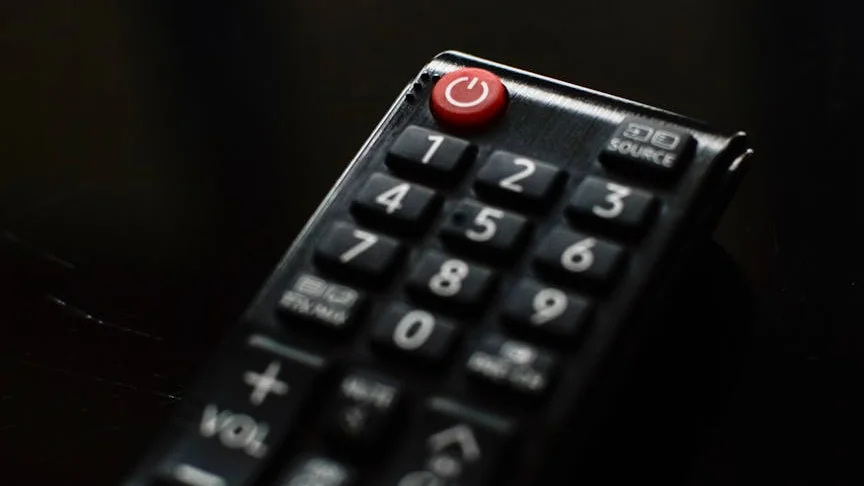
Eliminating Bluetooth Audio Lag on Your IPTV Stream
That frustrating disconnect between on-screen action and the corresponding sound—audio lag—can quickly degrade your IPTV viewing. This technical guide provides actionable methods to restore perfect synchronization between your video and Bluetooth audio.
What You’ll Need
Estimated Time: 10-30 minutes
Tools: Your IPTV device’s remote control and access to settings menus.
Understanding Bluetooth Audio Latency
Audio latency is the inherent delay as sound data travels wirelessly from your source device to your headphones or speaker. While some delay is normal, specific settings in your TV, IPTV app, or network can exaggerate it to a noticeable degree.
How Video Processing Features Disrupt Audio Sync
Many modern televisions employ real-time video enhancement features. These processes can inadvertently delay the picture, making the audio appear to be ahead.
- Motion Smoothing (e.g., TruMotion, Auto Motion Plus): This feature generates interpolated frames to reduce blur, adding processing time that delays video relative to audio.
- Game Mode: A useful setting for this scenario, as it typically disables most post-processing effects to minimize display lag, which can also improve audio sync.
- Hardware vs. Software Decoding: Ensuring your IPTV app uses your device’s dedicated hardware decoder (GPU) is generally more efficient and faster than software decoding, reducing potential sync issues.
Actionable Fixes for Bluetooth Audio Delay
First Adjustment: TV Audio Synchronization Settings
Your television’s built-in audio delay control is the most direct tool for correction.
- Press the “Menu” or “Settings” button on your TV remote.
- Navigate to the “Sound” or “Audio” settings menu.
- Locate an option labeled “Audio Delay,” “AV Sync,” “Lip Sync,” or “Audio Sync Adjustment.”
- Adjust the slider or numerical value. If sound lags behind video (lips move first), add delay. If sound is early, reduce the delay value.
- Apply the change and test with a live IPTV stream, fine-tuning until speech matches mouth movements.
Disabling Video Post-Processing Effects
Access your TV’s picture settings. Deactivate the following modes sequentially, checking sync after each change:
- All “Motion” enhancement settings (Smooth, Clear, Plus, Flow).
- “Noise Reduction” or “Digital Clean View” features.
- Enable “Game Mode” if available, as it often provides the most direct signal path.
Configuring Your IPTV Application’s Audio
Applications like Tivimate, IPTV Smarters Pro, or VLC have internal audio controls. Open your app’s Settings menu and explore:
- Audio Output/Decoder: Experiment with different decoders such as “AudioTrack,” “OpenSL ES,” or “Hardware.”
- Audio Sync/Audio Delay: Some apps include a manual delay adjustment measured in milliseconds.
- Buffer Size: An excessively small buffer may cause stutter, while a very large one can introduce delay. A moderate setting around 1500 ms is a good starting point.
Optimizing the Bluetooth Link
Address potential issues at the Bluetooth connection level.
- Re-pair Your Device: In your TV or streaming box’s Bluetooth settings, remove (“Forget”) your audio device and complete the pairing process anew.
- Verify Audio Codecs: Low-latency codecs like aptX LL are designed for AV sync. Consult your TV and headphone/speaker manuals to check for compatible codec support.
- Minimize Interference: Reduce the distance between your IPTV device and the Bluetooth receiver, and ensure no major obstructions or sources of wireless interference are between them.
Advanced Configuration and Tools
For persistent sync issues, these deeper adjustments offer greater control.
Leveraging an External Media Player (VLC)
Many IPTV apps allow playback through an external player. VLC Media Player provides granular audio sync controls.
- Install VLC on your streaming device (Fire Stick, Android TV, etc.).
- Within your IPTV app’s settings, locate “Playback” or “Player” and choose “External Player” or specifically “VLC.”
- Begin playing a channel. Access VLC’s on-screen menu during playback.
- Navigate to Audio > Audio Track Synchronization.
- Adjust the “Audio track synchronization” slider in real-time to align the audio perfectly.
System-Level Audio Adjustments on Android TV/Google TV
You can apply a global audio delay correction affecting all device audio output.
- Go to the device’s main Settings > Display & Sound > Advanced sound settings.
- Search for options like “Audio offset,” “HDMI audio delay,” or “Bluetooth audio delay.”
- Modify this setting; note it will impact audio from every application on the device.
Proactive Measures to Minimize Latency
Preventative steps can stop delay from occurring.
- Prefer a Wired Audio Connection: For definitive sync, use an optical cable or HDMI ARC/eARC to connect your audio system, eliminating Bluetooth latency entirely.
- Ensure Network Stability: Network buffering from an inconsistent connection can cause audio to desync. A wired Ethernet connection to your IPTV box is preferable to Wi-Fi.
- Power Cycle Your Equipment: Periodically restart your modem, router, TV, and IPTV box to clear temporary software glitches that may contribute to delay.
| Connection Type | Typical Latency | Best For IPTV? |
|---|---|---|
| Wired (HDMI/Optical) | Almost None | Excellent |
| Bluetooth (with aptX LL) | Very Low (~40ms) | Good (if supported) |
| Standard Bluetooth | High (100-200ms) | May Cause Delay |
Troubleshooting Specific IPTV Audio Problems
Sync Issues Isolated to Certain Channels
This typically indicates a problem with the broadcast stream itself, not your local setup.
Workaround: Apply a manual audio delay correction specifically for that channel using your TV or app’s settings. Alternatively, try a different channel from your provider that may have a better-encoded stream.
Bluetooth Audio Stutters or Drops Out
This is frequently caused by wireless signal interference or a low-quality Bluetooth connection.
Solution: Relocate other wireless devices (routers, cordless phones) away from your TV and Bluetooth speaker. Investigating potential ISP throttling and using a VPN can also resolve broader streaming issues, as detailed in our guide: [INTERNAL LINK: How to Stop IPTV Buffering].
Complete Loss of Bluetooth Audio
Solution: Verify the audio output device in your TV or streaming box’s sound settings is set to your Bluetooth device, not “TV Speakers” or “HDMI.” Also, confirm the volume is unmuted and turned up on both the source and the Bluetooth device.
Essential Steps to Restore Audio Sync
Resolving Bluetooth audio delay on IPTV is typically a process of systematic adjustment. Prioritize these actions:
- Utilize your television’s built-in “Audio Sync” or “Lip Sync” adjustment.
- Disable motion smoothing and other video processing features in your TV’s picture settings.
- Investigate the audio decoder and buffer settings within your IPTV application.
- Re-establish your Bluetooth pairing and optimize device placement.
- Employ VLC Media Player as an external player for its precise synchronization tools.
- For a permanent, high-quality solution, switch to a wired audio connection.
Implementing these corrections will synchronize your audio and video, restoring the intended viewing experience. Proper configuration is key to seamless IPTV playback. For further optimization, consult our related guides on [INTERNAL LINK: Setting Up Your EPG Guide] and [INTERNAL LINK: Advanced IPTV Player Settings].
Experience IPTV Without Compromise
Complement your perfectly synced audio with a premium IPTV service. Access a vast selection of stable, high-definition streams backed by reliable support.
