
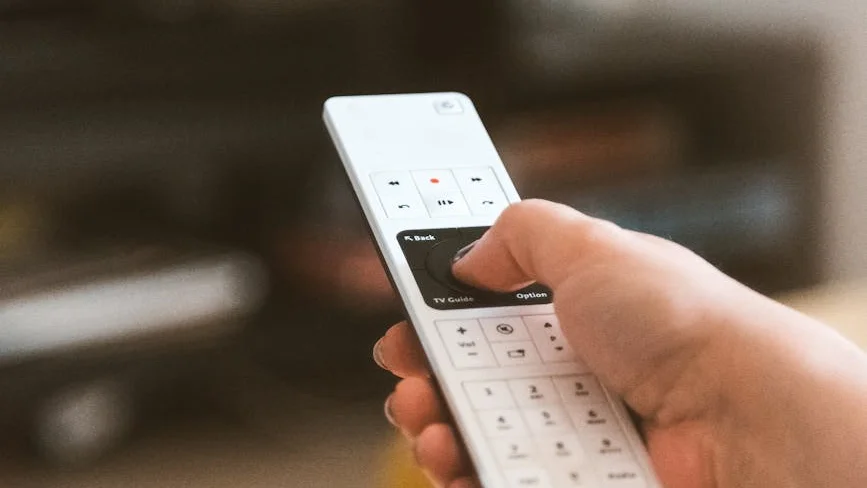
Samsung TV “Smart Hub” IPTV Glitches Solved
Your Samsung Smart TV’s IPTV app was working perfectly yesterday, but today it’s freezing, buffering, or crashing right from the Smart Hub. This frustrating scenario is common, but the good news is you can almost always resolve it yourself. This guide walks you through the proven fixes to restore smooth streaming.
What to Expect
Most solutions take between 10 and 30 minutes and only require your TV remote. We’ll start with the simplest, most effective fixes and move to more technical solutions if needed.
Understanding Why Your Samsung TV’s IPTV Misbehaves
IPTV issues on the Smart Hub rarely mean your service is down. More often, they’re local hiccups. You might see:
- Apps freezing or crashing immediately upon launch.
- The dreaded endless buffering wheel.
- Error messages related to network or server connections.
- Channels failing to load even though the program guide displays information.
These glitches typically stem from your TV’s software, a cluttered app cache, or network configuration—all of which are within your power to fix.
Gather Your Tools
To work through the solutions, have these items ready:
- Your Samsung TV remote.
- Your IPTV service credentials: this is usually an M3U URL or your Xtream Codes API details (server address, username, and password).
- A stable internet connection (an Ethernet cable is preferable to Wi-Fi for IPTV).
- The name of the specific IPTV app you use (e.g., Smart IPTV, IPTV Smarters Pro, TiviMate).
The Essential Troubleshooting Sequence
Follow these actions in order. Most users find their solution within the first few.
First: Update Your Software and Apps
Outdated software is a prime cause of crashes. Navigate to Settings > Support > Software Update > Update Now on your TV. Don’t forget to also visit the Samsung App Store page for your specific IPTV app and check for any available updates there.
Second: Clear the App’s Cache and Data
Corrupted temporary files can cripple an app. Go to Settings > Support > Device Care > Manage Storage. Find your IPTV app in the list and select “Clear Cache.” If problems persist, the next step is “Clear Data”—be aware this will log you out of the app, so have your login details handy.
Third: Verify Your Network Health
Buffering is frequently a network issue. Run a diagnostic by going to Settings > General > Network and selecting “Network Status” to run a test. For the most stable IPTV experience, a wired Ethernet connection is vastly superior to Wi-Fi. If Wi-Fi is your only option, ensure your TV has a strong, consistent signal.
Fourth: Perform a Fresh App Install
When clearing cache doesn’t work, a clean installation can resolve deeper corruption. From the Smart Hub home screen, navigate to your IPTV app, press and hold the “Select” button on it, and choose “Delete.” Then, visit the Apps section, search for the app by name, and download it again from the official store.
Technical Tweaks for Persistent Issues
If the standard steps haven’t solved it, these advanced adjustments often make the difference.
Optimize Your DNS for Faster Resolving
Your TV’s default DNS server can sometimes be slow, delaying channel connections. Switching to a faster public DNS can improve responsiveness.
- Navigate to Settings > General > Network > Network Status.
- Select your active network connection and choose “IP Settings.”
- Change “DNS Settings” from Automatic to “Enter manually.”
- Input a reliable public DNS address:
1.1.1.1for Cloudflare or8.8.8.8for Google. - Save the settings and restart your television.
Switch to Hardware Decoding in Your App
This setting offloads video processing from the app to your TV’s dedicated hardware, which is more efficient. Open the settings menu within your IPTV app (often a gear icon). Look under “Playback,” “Decoder,” or “Video” settings for an option to change the decoder type to “Hardware” or “Hardware Decoding.”
Installing Apps Not Found in the Samsung Store
Many popular IPTV apps require sideloading via the “Downloader” app since they aren’t in the official store.
- From the Samsung App Store, search for and install “Downloader” by AFTVnews.
- Open the Downloader app and enter the official website URL for your IPTV app’s installation file (an .apk). Only use URLs from the app’s official website to ensure safety.
- Download and install the file. You may need to enable “Unknown Sources” in Settings > Personal > Security to complete the installation.
For a complete walkthrough of this process, see our detailed tutorial: [INTERNAL LINK: How to Sideload Apps on Samsung Smart TV].
Choosing Your IPTV Path on Samsung TV
Not all setup methods are equal. Here’s how the main options compare for ease and performance.
| Method | Ease of Use | Stability | Best For |
|---|---|---|---|
| Official Samsung App | Very Easy | Good | Beginners, simple setup. |
| Downloader & Sideload | Medium | Excellent | Power users who want more app choices. |
| External Device (Firestick) | Easy | Best | Older TVs or to avoid all Smart Hub issues. |
When the Problem Might Be Your IPTV Service
If you’ve completed all the steps above and only your IPTV app malfunctions (while apps like Netflix and YouTube work perfectly), the issue could be service-related.
- Double-Check Your Credentials: Verify your M3U URL or Xtream Codes information is entered correctly in the app’s settings.
- Inquire About Server Status: Contact your provider to ask if there are any known server outages or maintenance periods.
- Confirm Account Status: Ensure your subscription is active and payments are up to date.
Restoring Your Viewing Experience
IPTV problems on your Samsung Smart Hub are typically solvable. Begin with a simple power cycle and software update, then proceed to clear the app’s cache and optimize your network. For a hassle-free long-term solution, a high-performance IPTV player app or an external streaming device often provides the best experience.
To explore a premium service designed for compatibility and reliability across all platforms, consider evaluating trusted providers.
Compatible with Samsung Smart Hub, Firestick, Android, and more.
Still Need Assistance?
If your specific issue remains unresolved, our comprehensive resource on [INTERNAL LINK: Solving Common IPTV Error Codes] may have the answer. For official technical support, always consult the official Samsung support website.
