
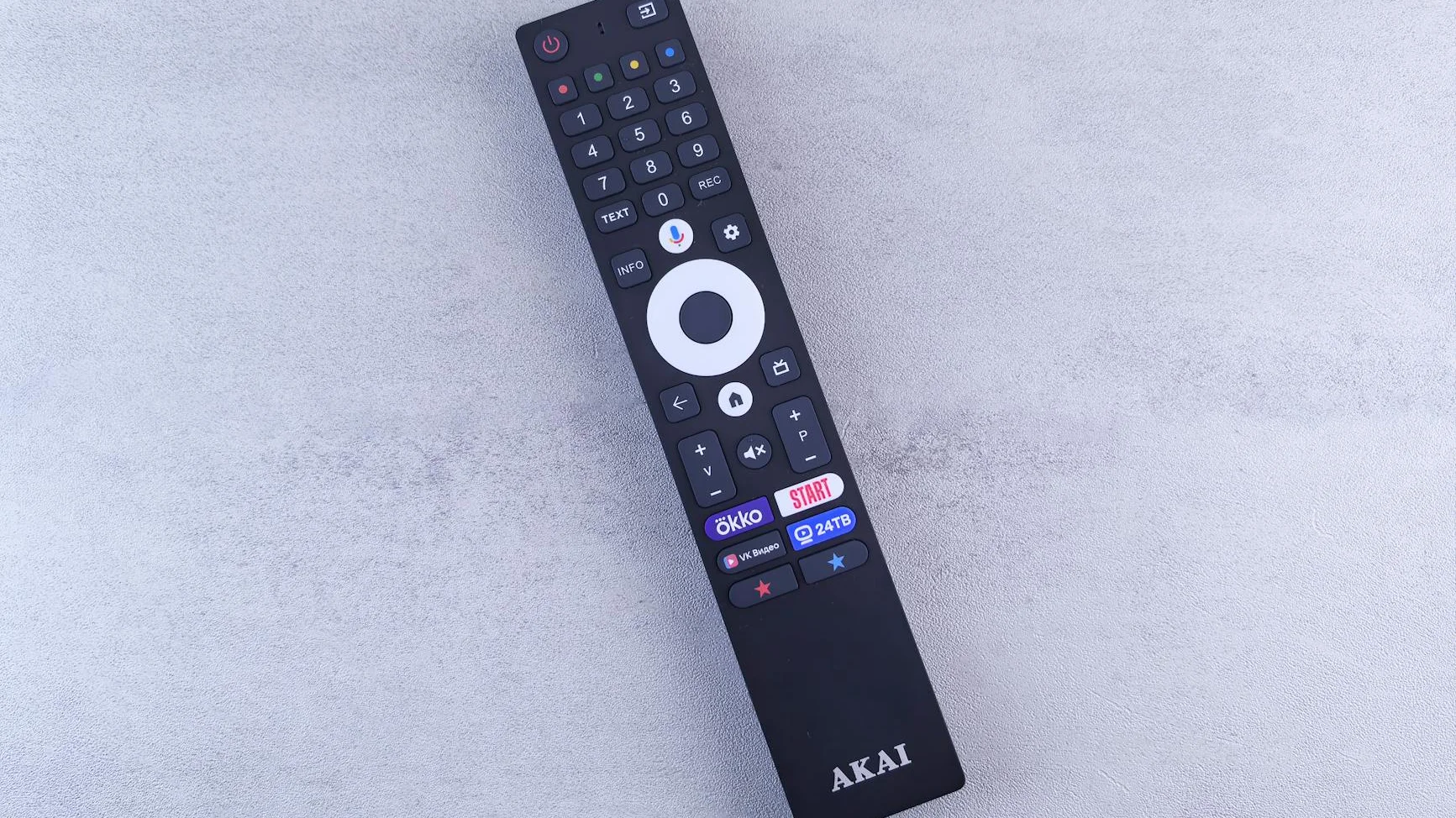
Is OTT Navigator crashing right when you try to watch your favorite show? You’re not alone. This powerful IPTV player is fantastic, but crashes can ruin your viewing experience. This guide will walk you through simple, proven fixes for every device.
Guide at a Glance
Duration: 10-30 minutes
Skill Hub: 2 out of 5 (Beginner-Friendly)
Primary Tool: Your device’s Settings menu & a stable internet connection.
Quick Overview: Why OTT Navigator Crashes
OTT Navigator is like a smart TV remote for your IPTV service. Sometimes it crashes because of a simple setting, outdated software, or a conflict on your device. The most common reasons are:
- Outdated App: You’re running an old version with bugs.
- Corrupted Cache: Temporary files are clogging the app.
- Wrong Playback Settings: Hardware Decoding might be off or causing issues.
- Weak Device: The app may need more power than your older device has.
- Bad Internet: Network Buffering and timeouts can cause crashes.
Installation in 3 Simple Steps
First, make sure you have the latest, correct version of OTT Navigator installed.
Step 1: Get the App on Your Device
The method changes based on your device. Here’s a quick comparison:
| Device Type | How to Install | Best Source |
|---|---|---|
| Android TV / Firestick | Use the Downloader app to get the APK file. | Official OTT Navigator website or trusted APK repository. |
| Smartphone/Tablet (Android) | Install directly from the Google Play Store. | Google Play Store |
| Windows PC | Use an Android emulator like BlueStacks. | BlueStacks Website |
Step 2: Enable “Unknown Sources” (For APK Installs)
If you’re sideloading the APK on a Firestick or Android TV Box:
- Go to your device’s Settings.
- Find Security & Restrictions or My Fire TV > Developer Options.
- Turn ON “Apps from Unknown Sources” for the Downloader app.
Step 3: Install & Open
Run the installer. Once done, open OTT Navigator. If it crashes immediately on open, jump to the Troubleshooting section below.
Configuration: Adding Your IPTV Service
Now, add your IPTV subscription. You’ll need your M3U URL or Xtream Codes API login details from your provider.
- Open OTT Navigator and press the Menu button (or click the three lines).
- Select “Settings” > “Content” > “Playlists”.
- Click the “+” (Add) button.
- Choose your setup type:
- For M3U URL: Select “M3U URL”, paste your link, and click “OK”.
- For Xtream Codes: Select “Xtream Codes API”, then enter your full login details (URL, username, password).
- Wait for the playlist to download. Then, go back and set up your EPG guide URL in the “EPG” section the same way.
Plan B: If Configuration Fails
If the app crashes while adding the playlist:
- Check Your URL: Ensure the M3U URL or Xtream Codes API link is 100% correct with no extra spaces.
- Use a VPN: Your Internet Provider might be blocking the connection (ISP Throttling). A VPN can bypass this. [INTERNAL LINK: Best VPNs for IPTV]
Watching Live TV: Optimizing Playback
To prevent crashes during playback, optimize these settings:
- Go to Settings > Playback.
- Find “Hardware Decoder” or “Hardware Decoding”. Try toggling this setting. (If it’s ON, turn it OFF, and vice-versa). This is the #1 fix for playback crashes.
- Find “Buffer Size”. Increase it to “Medium” or “Large” to help with Network Buffering.
- Go back to your channel list and try playing a stream.
Troubleshooting: Fixing Crashes on All Devices
Follow these steps in order until the crashing stops.
Fix 1: Clear Cache and Data (The Quick Refresh)
This is like cleaning out the app’s short-term memory. It fixes most crashes.
- Go to your device’s main Settings > Apps > OTT Navigator.
- Select “Force Stop”.
- Then select “Clear Cache”. Try the app again.
- If it still crashes, go back and select “Clear Data”. Warning: This will erase your playlists and settings, so you’ll need to add them again.
Fix 2: Update or Reinstall the App
Make sure you have the latest version. Uninstall the app completely, then download and install it fresh from the source in the table above.
Fix 3: Check Your Internet and DNS
A slow or blocked connection can crash the app.
- Restart Your Router: Unplug it for 30 seconds.
- Change Your DNS: Think of DNS as the internet’s phonebook. A bad one slows everything down. In your device’s network settings, try using Google’s DNS:
8.8.8.8and8.8.4.4. - Use a Wired Connection: If on a TV box, use an Ethernet cable instead of Wi-Fi for stability.
Fix 4: Reduce Load on the App
If your playlist has 10,000 channels, it might be too much for your device.
- Contact your IPTV provider and ask for a “filtered” M3U URL with only your favorite channels or specific countries.
- In OTT Navigator settings, disable automatic EPG updates or reduce how many days of guide it downloads.
Fix 5: Device-Specific Solutions
- Firestick 4K Max / Regular 4K: Go to Settings > Applications > Manage Installed Applications > find and force stop any apps you aren’t using. Free up RAM.
- Android Phones/Tablets: Check for a system software update in your device Settings. An old OS can cause app conflicts.
- All Devices: Ensure you have at least 500MB – 1GB of free storage space.
Conclusion: Enjoy Stable Streaming
OTT Navigator crashing is almost always fixable. Start with the simplest solution: clear the app’s cache and toggle the Hardware Decoding setting. Most problems are solved there. If not, work through the other fixes like reinstalling or checking your connection. A stable IPTV experience depends on a good app and a reliable service.
For the ultimate in stability and user-friendly features, consider a premium player designed for modern streaming. A top-tier alternative can often provide a smoother, more supported experience.
Ready for a Flawless IPTV Experience?
Upgrade to a powerful, all-in-one solution with dedicated support and regular updates.
Official Website | 24/7 Support | Multi-Device Compatibility
Related Reading: Learn how to get the most from your setup with our guide on [INTERNAL LINK: How to Set Up an EPG Guide] or tackle other common issues in [INTERNAL LINK: Fixing IPTV Buffering for Good].
