
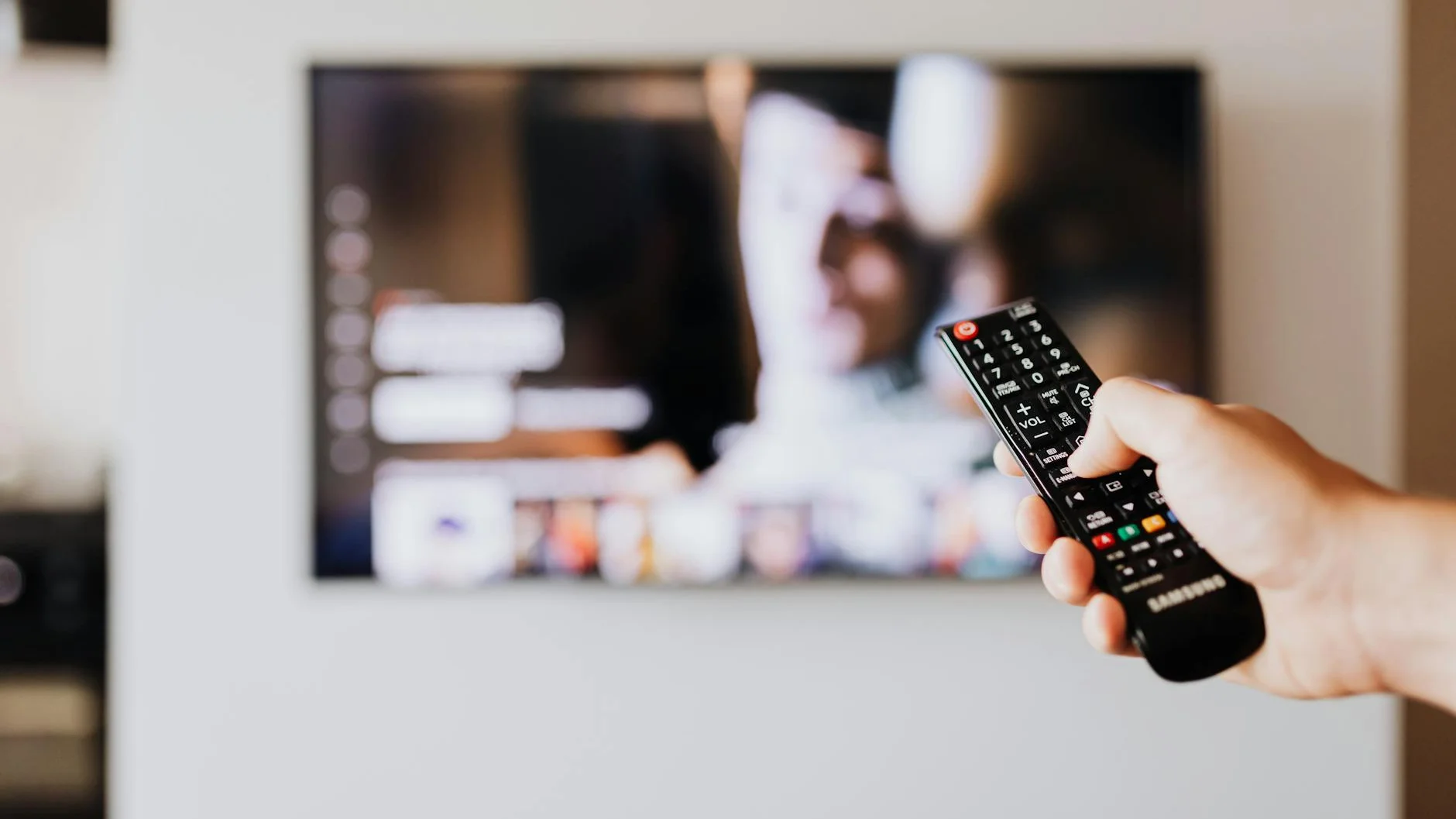
Remote Server Timeout Solved: Reconnecting to Your Provider
Seeing a “Connection Lost” or “Server Timeout” message can ruin your viewing plans. This guide answers the most common questions to help you restore your IPTV connection quickly.
What to Expect
Most fixes take between 5 and 15 minutes. You’ll mainly need your device’s remote and access to its network settings.
IPTV Timeout Questions & Answers
What exactly is a “Remote Server Timeout”?
Your IPTV device sends a request for channel data to a remote server. A timeout occurs when that server doesn’t respond quickly enough, so your device drops the connection. It’s a very common error that often stems from your local network or device settings rather than a complete service outage.
How can I tell if my IPTV connection is actually stable?
A truly stable setup delivers more than just a picture. Look for these signs:
- Instant Channel Switching: No long waits between channels.
- Reliable EPG Guide: Your electronic program guide loads correctly and shows what’s on.
- Minimal Buffering: The video plays smoothly without constant pauses.
- Consistent Access: You can log in with your Xtream Codes API or M3U URL whenever you want.
My IPTV just timed out. What’s the first thing I should try?
Start with a full power cycle. This simple action resolves countless streaming issues.
- Unplug your streaming device (like a Fire Stick or Android Box) and your router from power.
- Wait for a full 60 seconds to clear temporary memory.
- Plug the router back in and wait for all indicator lights to stabilize.
- Finally, plug your streaming device back in and launch your IPTV app.
If the error persists: The issue likely lies elsewhere; proceed to check your internet connection.
Could my internet be causing the server timeout?
Absolutely. IPTV requires a consistent data stream, and weak Wi-Fi is a frequent culprit.
- Navigate to Settings > Network on your device.
- Run a speed test. Stable HD streaming typically needs at least 15-20 Mbps.
- If on Wi-Fi, try moving the router closer or, ideally, use an Ethernet cable for a direct, more reliable connection.
Should I update my apps or device?
Yes. Outdated software can contain bugs that lead to dropped connections.
- Visit your device’s app store (Amazon Appstore, Google Play Store).
- Search for your IPTV app (e.g., Smarters Player, Tivimate).
- If an update is available, select Update.
- Also check for any system updates for your Fire TV, Android TV, or other device in its main settings.
What if I typed my login details wrong?
Incorrect credentials will always cause a connection failure. It’s worth double-checking.
- Open your IPTV app and go to Settings > Manage Playlists or Add Portal.
- Carefully re-enter your Xtream Codes API details (URL, username, password) or your M3U URL.
- Pay attention to typos, as URLs are often case-sensitive.
Still stuck? Contact your provider to confirm your service is active and your credentials are correct. [INTERNAL LINK: How to contact your IPTV provider].
Can changing my DNS server help?
Often, yes. Your DNS translates web addresses. A slow default DNS can cause delays. Switching to a faster public DNS can improve response times.
- On your device, go to Settings > Network.
- Select your current Wi-Fi or Ethernet connection and choose Advanced or Edit.
- Change DNS settings from “Automatic” to “Manual”.
- Enter these public DNS addresses:
- Primary DNS:
1.1.1.1(Cloudflare) - Secondary DNS:
8.8.8.8(Google)
- Primary DNS:
- Save the settings and restart your device.
I use a VPN. Could that be the problem?
It’s possible. While a VPN can prevent ISP Throttling, some IPTV servers block IP addresses from known VPN services, resulting in timeouts.
- Turn off your VPN completely via its app settings.
- Attempt to connect to your IPTV service again.
- If it works, your VPN was the issue. You may need to try a different server location or ask your provider which VPNs they allow.
Common Error Messages Decoded
| Error Message | Likely Cause | Quick Fix |
|---|---|---|
| “Connection Failed” / “Server Unreachable” | Wrong portal URL or server is down. | Verify URL with provider; Restart device. |
| “Invalid Login” | Incorrect username/password or expired subscription. | Re-enter credentials; Contact provider. |
| “Network Buffering” constantly | Slow internet or ISP Throttling. | Run a speed test; Try a reputable VPN. |
How can I prevent timeouts in the future?
- Use a Wired Connection: An Ethernet cable is always more stable than Wi-Fi for streaming.
- Close Background Apps: Too many apps running can slow your device and cause Network Buffering.
- Choose the Right App: Some players handle streams better. For a premium experience with easy setup for Xtream Codes API and M3U URL playlists, consider a dedicated player.
- Check for Hardware Decoding: In your IPTV app’s playback settings, enable “Hardware Decoding.” This uses your device’s graphics chip for more efficient video playback.
Ready for a Seamless Streaming Experience?
A reliable IPTV player makes all the difference. Smarters Pro offers an intuitive interface, powerful management for multiple playlists, and stable playback to minimize errors.
Final Thoughts on Staying Connected
A “Remote Server Timeout” is typically a temporary hurdle. By methodically checking your setup—starting with a restart and moving through network and login checks—you can usually restore your service quickly. Remember, a solid network and accurate credentials are the foundation of good IPTV. For finer tuning, see our guide on [INTERNAL LINK: Optimizing IPTV buffer settings].
If all these steps fail, the issue is likely with your provider’s server. Reach out to their support team for direct assistance. Happy streaming!
